
To set a stop-loss in a forex trading app, open the order ticket or an existing position, enter the stop level, review the trade direction and position size, then submit and confirm that the stop is attached. A standard stop-loss limits your intended risk, but it does not guarantee your exit price when the market gaps or moves quickly.
- For forex trading app stop loss setup, check direction, position size, stop level, and confirmation before trading.
- Place a buy position’s protective stop below entry and a sell position’s protective stop above entry.
- A standard stop-loss can execute at a worse price than requested during fast markets or gaps.
- Tradeforex delivers forex signals through its web app; you place and manage trades with your broker.
How do you set a stop-loss in a forex trading app?
Use the order ticket to attach protection before submitting a new trade, or modify an existing position to add a stop. Button names vary, so follow your broker’s instructions rather than assuming every app uses the same controls.
Signals received through Tradeforex are trade ideas, not orders placed with your broker. You still need to check and submit your own stop-loss settings.
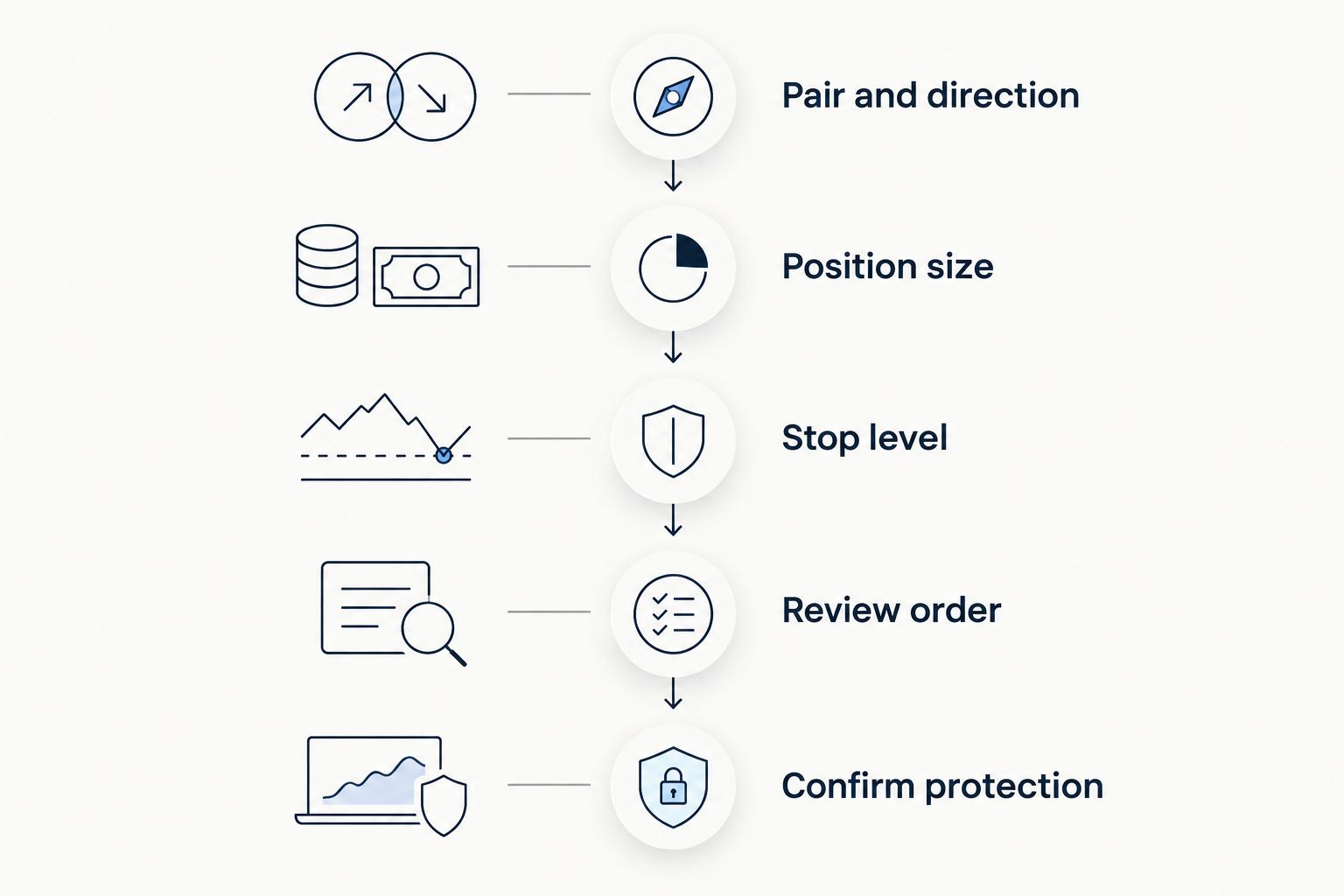
Check the pair and direction
Open the currency pair you intend to trade and confirm whether you are buying or selling. A buy position benefits when the pair rises; a sell position benefits when it falls.
For a conventional protective stop:
- Buy position: place the stop below your entry.
- Sell position: place the stop above your entry.
Check the actual position direction, not just the direction shown on a chart. Buying to close an existing sell position is different from opening a new buy position.
Set the position size
Enter the trade size before relying on the app’s estimated loss. Position size is the amount of currency exposure you take, and it determines how much money a given market movement gains or loses.
A wider stop with the same position size exposes you to a larger loss. If the intended stop exceeds your risk limit, reduce the position size or skip the trade rather than moving the stop somewhere that no longer fits the trade idea.
Set the trade size around the risk you can accept, not around the margin the broker permits. Margin is the money required to support a position; it is not your maximum possible loss.
Enter the stop level
Find the stop-loss field, sometimes abbreviated as SL. Depending on the broker’s interface, you enter an exchange-rate level, a distance in pips or points, or an amount of account currency.
Read the field label carefully. A price-level field and a distance field describe different instructions, even if both accept digits.
For most currency pairs, 1 pip equals 0.0001 in exchange-rate units. For pairs quoted in Japanese yen, 1 pip generally equals 0.01 in exchange-rate units. A fractional pip is 0.1 pip, so a platform point is not automatically a full pip.
Check the broker’s definition before entering a distance. Do not copy a pip figure into a points field without checking how that platform measures it.
Review the order
Before submitting, check the currency pair, trade direction, position size, and stop level together. If the app displays an estimated loss, confirm which account currency it uses and whether that estimate includes trading charges.
Look for a warning or rejected value. Brokers can impose minimum stop distances, and a field that accepts your typing does not prove the server has accepted the instruction.
Check any take-profit setting separately. A take-profit targets an exit after a favorable move; it does not replace protection against an unfavorable move.
Confirm protection
Submit the order or save the modification, then open the position details. Confirm that the stop-loss appears on the correct live position rather than remaining only in an unsent ticket.
If you receive an error or lose connection, inspect the position again before retrying. An attempted stop-loss change is not a confirmed stop-loss change. Avoid submitting another trade just because the first screen did not update immediately.
Why this matters
A stop-loss connects your trade idea to an exit instruction. Without that instruction, closing a losing position depends on your ability and willingness to act while the market is moving.
That does not make the trade safe. Borrowed exposure, changing spreads, execution differences, and market gaps still affect the result. A stop-loss is a risk-control tool, not insurance against every loss.
For a beginner, the most useful habit is simple: check protection as carefully as entry. A correctly chosen currency pair does not compensate for an oversized position or an unsaved stop.
Which stop-loss order should you choose in 2026?
A standard stop-loss is the starting point for learning how a protective exit works. A trailing stop adds another rule: the stop follows favorable market movement according to the platform’s settings. Check which order types your broker actually supports.
| Stop type | Best for | What it does | Advantage | Limitation |
|---|---|---|---|---|
| Standard stop-loss | Beginners learning fixed exit rules | Holds a specified trigger level until changed | Makes the intended exit level clear | Execution can differ from the requested level |
| Trailing stop | Traders who understand the platform’s trailing rules | Adjusts the stop as the market moves favorably | Can tighten protection without repeated manual edits | A temporary reversal can trigger an exit; operating requirements vary |
A trailing stop does not solve poor position sizing. It also does not guarantee that a profitable position will close at the best level reached during the trade.
Before enabling trailing behavior, check whether the broker manages it on its server or whether your trading software must remain connected. Do not assume a moving line on your screen proves the broker has received a new stop instruction.
Why stop-loss setup varies
The same trading idea can require different entries across interfaces. Check these factors before transferring settings from a tutorial or signal:
- Input format: a stop field can expect an exchange-rate level, a distance, or an account-currency amount.
- Quote convention: pip sizes and fractional quoting affect how you interpret the displayed distance.
- Trade direction: buy and sell positions need protection on opposite sides of entry.
- Broker rules: minimum distances and modification restrictions can affect whether an instruction is accepted.
- Execution conditions: spreads, market gaps, and available liquidity affect when a stop triggers and where it executes.
Use the broker’s order documentation for interface-specific instructions. A screenshot from a different app is not a substitute for checking the field you are using.
Your 2026 stop-loss verification checklist
After submission, open the position and verify the settings rather than relying on the confirmation banner alone. This check catches a missing instruction before you leave the order screen.
- Confirm the stop belongs to the intended currency pair and position.
- Read the saved stop level, not only the chart marker.
- Check the position size again after any order changes.
- Confirm that a modification was accepted rather than rejected.
- Understand whether closing part of the position changes the remaining protection.
If the stop is missing, investigate the broker’s message and correct the instruction. If you cannot establish the intended protection, closing or reducing the position is a separate risk decision; waiting does not create a stop automatically.
Can you add a stop-loss after opening a trade?
Yes, a broker app that supports position modification lets you add a stop-loss to an existing position. Open the position, select its modification controls, enter the stop, save it, and verify acceptance.
The position remains exposed while no stop is attached. Adding protection later is not equivalent to having it in place from entry.
Why does the app reject your stop-loss?
A stop-loss can be rejected because its level violates the broker’s distance rules, uses the wrong input format, or sits on the wrong side of the relevant market price. Read the rejection message before changing anything.
Do not repeatedly move the stop farther away just to make the app accept it. Recheck the position size and intended risk first.
Does a stop-loss close at the exact level you enter?
A standard stop-loss does not guarantee execution at the exact level entered. Once triggered, it seeks an exit under the broker’s execution rules, and the available execution price can differ.
That difference is called slippage. Market gaps and fast conditions make it especially important not to treat the displayed stop level as a guaranteed maximum loss.
Using forex signals in 2026
Tradeforex is best suited to beginners seeking forex signals in a web app, not broker trade execution. The distinction matters: receiving an idea and placing a protected position are separate actions.
Before using any signal, check whether you understand its currency pair, direction, intended entry conditions, and exit logic. If an instruction is unclear or lacks information you need to assess the risk, do not fill the gap with a guess.
A signal’s suggested stop also needs checking against your actual entry. If the market has moved since publication, your distance to that level differs from the original setup, changing the risk associated with the same position size.
Do not assume that receiving a signal creates, updates, or closes a broker order. Verify each action in the broker app, including any later changes you decide to make.
Practice the full workflow in 2026
Use a demo environment, where offered, to rehearse opening a position, adding a stop, modifying it, and checking the saved instruction. Practice the interface before depending on it during a live market move.
Include both buy and sell positions in that rehearsal. The aim is to recognize which side of entry needs protection without confusing an opening trade with a closing transaction.
Demo practice teaches the controls, not the emotional experience or guaranteed execution conditions of live trading. Keep that distinction clear: familiarity with an order ticket does not establish that a strategy will make money.
FAQ
Where do I find the stop-loss setting in a forex trading app?
Look in the new-order ticket or the modification controls for an existing position, often under Stop Loss or SL. The exact location depends on the broker’s interface, so check its instructions and confirm the saved stop afterward.
Should my stop-loss be above or below my entry?
A conventional protective stop goes below entry for a buy position and above entry for a sell position. Check the position direction and the broker’s trigger rules before submitting it.
What is the difference between pips and points?
A pip is a conventional exchange-rate increment, while a point depends on the platform’s quoting convention. For most currency pairs, 1 pip equals 0.0001 in exchange-rate units; for Japanese yen pairs, it generally equals 0.01.
Will my stop-loss still work if I close the app?
A standard stop accepted and held on the broker’s server does not depend on keeping your app open. Trailing-stop arrangements vary, so verify whether that function requires connected software.
Can a stop-loss lose more than the amount shown?
A standard stop-loss can produce a larger loss than the displayed estimate because execution can occur at a worse level. Trading charges can also affect the final account result, so do not treat the estimate as a guarantee.
Does Tradeforex place the stop-loss for me?
Tradeforex provides forex signals inside its web app; it is not your broker trading app and does not execute your trades. Enter and verify your stop-loss with your broker rather than treating a signal as an executed order.
Should I move my stop-loss when a trade starts losing?
Moving a stop farther away increases the loss allowed by the same position size. Do not widen it merely to avoid an exit; reassess the trade against your original risk limit instead.
One last thing
For your next trade in 2026, make the final check on the position details screen, not the order-entry screen. The first shows the protection recorded against the position; the second can still contain an instruction you have not successfully submitted.
A stop typed into a box is only an intention. Confirmed protection is the instruction your broker has accepted.