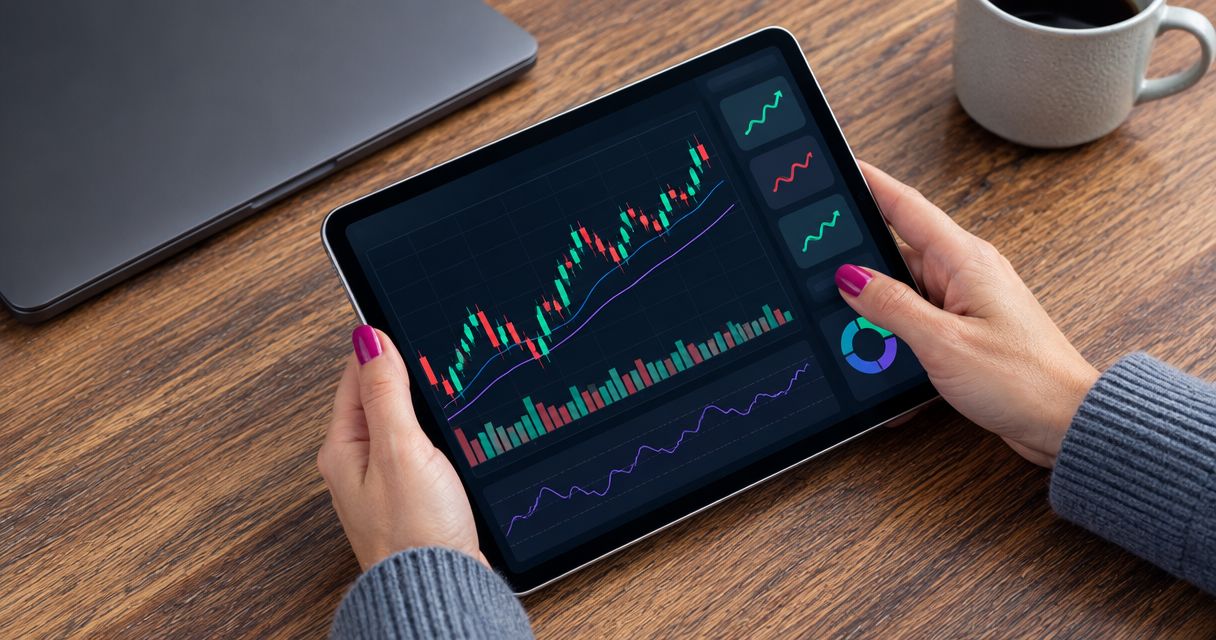
An iPad beginner’s forex trading app setup is a workspace for checking currency charts, placing broker orders, and monitoring risk without confusing trade ideas with executed trades. Choose a forex trading app for iPad by testing the order ticket, open-position view, and movement between screens—not by counting indicators.
- Choose a forex trading app for iPad that keeps order details readable, not one that simply displays more charts.
- Test chart layouts and order entry in demo mode before committing real money.
- Keep forex signals separate from broker execution: receiving a trade idea does not place an order.
- Reject any layout that hides position size, trade direction, or open positions during your practice routine.
Why screen layout matters for iPad beginners
Your iPad has room for a larger chart, but a larger chart does not automatically make trading easier. The useful question is whether you can read the market, check an order, and review an open position without losing track of the currency pair or account you selected.
For your 2026 shortlist, assess the complete workflow rather than an app-store screenshot. A chart screenshot cannot establish how the keyboard covers an order ticket, how confirmations appear, or what remains visible when you open another window.
Start with this guide to choosing a forex trading app before subscribing to signals. Choose the execution workspace first; evaluate signals as a separate decision.
Beginners need plain labels and repeatable checks. A buy order and a sell order express different market directions, while position size determines how much currency exposure you take. Neither should become an assumption because a control disappeared below the keyboard.
Build your iPad screen-layout checklist
Define what each screen must help you do
Begin with a paper checklist or a note beside your iPad. Separate your work into 3 screens: market review, order entry, and position monitoring. These are tasks to test, not a requirement for an app to provide three separate pages.
Market review means identifying the currency pair and understanding the chart you are viewing. Order entry means checking the proposed transaction before submitting it. Position monitoring means finding trades already open and understanding their current status.
A single-screen layout can work if the controls remain readable. A layout spread across several screens can also work if each transition preserves the right instrument and account context. Judge the sequence, not the number of panels.
Use the same checklist for every candidate in your 2026 comparison. Otherwise, a visually impressive chart can distract you from a weak order ticket.
- Write down the currency pairs you intend to study.
- Identify where the app displays the selected account.
- Locate the order-entry control without submitting anything.
- Find open positions separately from pending orders.
- Record any screen that forces you to rely on memory.
Test the chart in both orientations
Use a demo account where available and inspect the same currency pair in 2 orientations: portrait and landscape. This is a practical test recommendation, not a claim that every app supports both equally.
Check whether the price scale, time scale, and chart controls remain legible. A candlestick summarizes price movement over a selected interval; changing that interval changes what each candle represents. You need to recognize the selected interval before interpreting the picture.
Then open the keyboard or any panel you expect to use during analysis. Do not assess the chart only in its cleanest state. Your working layout must remain understandable with the controls you actually need open.
For a 2026 evaluation, record the app version and iPad software version alongside your notes. That gives your later retest a clear reference when an update changes the interface.
- Read the currency-pair label without zooming the page.
- Find the selected chart interval immediately.
- Check that price labels remain visible beside an open panel.
- Test zooming without accidentally activating an order control.
- Compare readability in portrait and landscape.
Separate signals from the broker workspace
Manually write a sample trade idea in a note, then compare it with a demo order ticket. This simple exercise reveals what you must transfer, what the broker asks you to enter, and which details a signal must explain before you can evaluate it.
Tradeforex provides its own forex signals service, and subscribers receive signals inside the Tradeforex web app. Treat the service as a source of trade ideas, not as a broker trading app or a substitute for checking an order.
Tradeforex forex signals are best for beginners seeking trade ideas in a web app, separate from broker execution. That fit does not establish profitability, compatibility with your broker, or whether a particular idea suits your risk limits.
Review Tradeforex when considering a signals subscription. Before subscribing, check the current service information and decide what evidence you require; do not assume that entry, exit, or risk explanations are included unless the actual signals demonstrate them.
- Identify where you receive the signal and where you place the order.
- Check whether the currency pair matches the broker’s instrument.
- Confirm that you understand the proposed trading direction.
- Look for the conditions that would invalidate the idea.
- Skip any idea you cannot independently translate into an order.
Rehearse the order ticket without real money
Use the broker’s practice environment where available. If a candidate offers no suitable way to rehearse its order workflow, do not use a live trade merely to discover where its controls are.
An order ticket is the form used to enter transaction instructions. A market order seeks execution at an available market price; a limit order sets a price condition. A stop-loss instruction is intended to limit a loss, but it does not guarantee execution at the exact requested price.
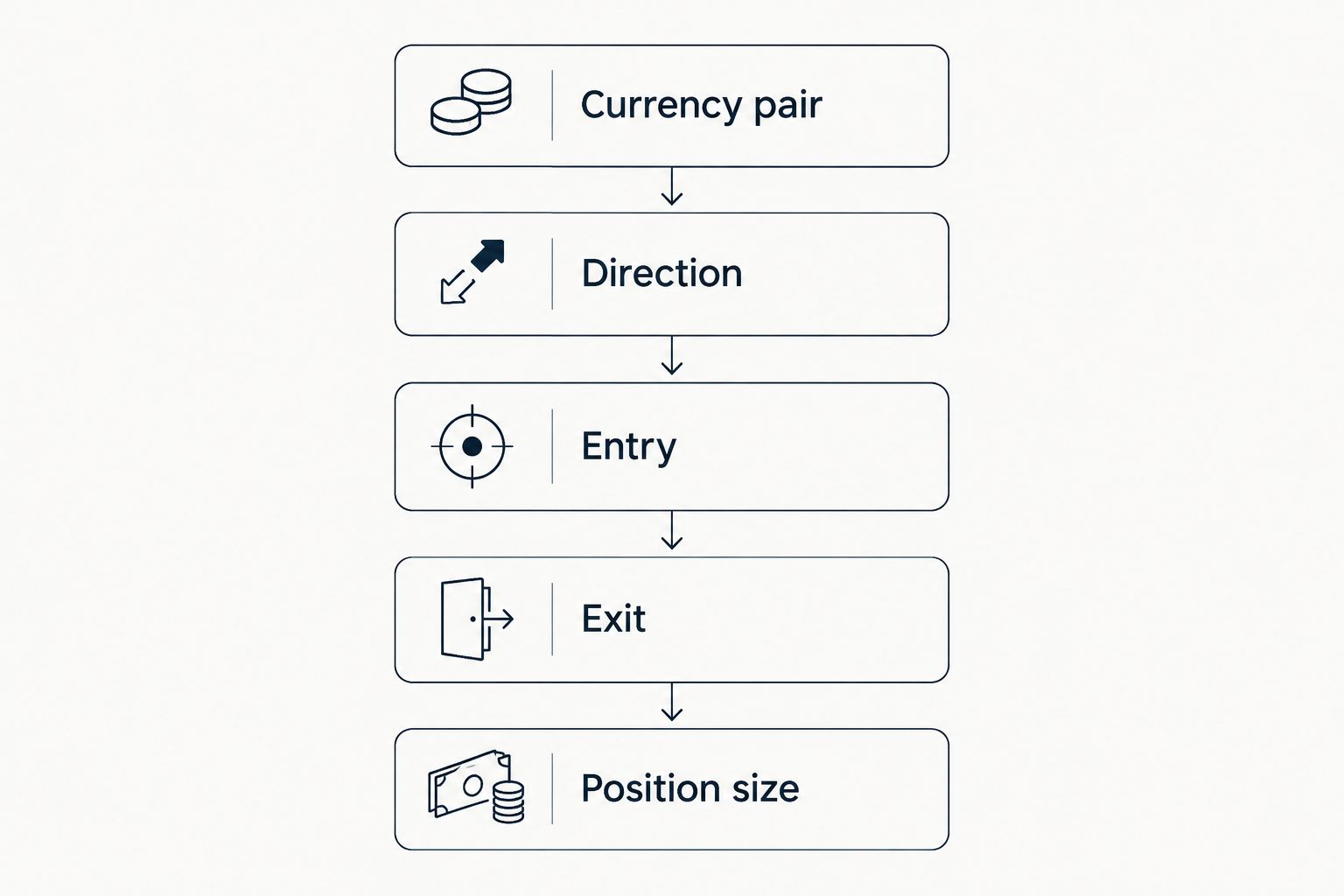
Keep 5 fields on your rehearsal checklist: currency pair, direction, entry, exit, and position size. These fields describe decisions you must understand; they do not imply that every app presents them in the same format.
A readable chart cannot compensate for an order ticket you misunderstand. Pause whenever a unit, label, or order type is unclear, and consult the broker’s explanation before continuing.
- Currency pair: verify the instrument before touching order controls.
- Direction: distinguish buying from selling.
- Entry: identify the order type and any price condition.
- Exit: understand any stop-loss or take-profit instruction.
- Position size: confirm the unit and currency exposure.
The diagram below keeps these checks separate so that a clear entry idea does not distract you from an unclear exit or position size.
Check what happens when you switch windows
Start with manual switching between your chart, a sample trade idea, and the practice order ticket. Do not assume your iPad, operating-system version, browser, and chosen apps support the same multitasking arrangement as someone else’s device.
If a side-by-side arrangement is supported, test it with the keyboard open. If it is not supported, rehearse switching between windows and checking the instrument again after each transition. A split view is useful only when the remaining space keeps the important details readable.
Write down any information you had to memorize while switching. A short note can reduce that burden, but it does not remove the need to recheck current order details. Never assume the price displayed before switching remains available afterward.
For your 2026 checklist, make readability the pass condition. More simultaneous windows are not inherently better.
- Confirm the selected currency pair after returning to the broker app.
- Check whether the order ticket retains previously entered values.
- Recheck price information before submitting a practice order.
- Observe which fields the keyboard covers.
- Use sequential full-screen views if divided space becomes cramped.
Review positions and set a subscription decision
Complete the rehearsal by locating the practice position after submission. Check whether the order is filled, pending, rejected, or canceled rather than treating a button press as proof of execution.
Then practice finding the controls for modifying or closing that position. Read the confirmation carefully: closing an existing position and opening a trade in the opposite direction are not interchangeable actions to assume from button color alone.
Keep a short record of layout problems and unresolved questions. Separate interface confidence from trading confidence; learning where a button sits does not establish that a strategy works.
Apply the same distinction to Tradeforex forex signals. Subscribe only after reviewing the current service information, understanding how you will use the ideas, and deciding that the service fits your own process—not because the web app sits neatly beside a chart.
- Find the status of the practice order.
- Distinguish pending orders from open positions.
- Locate the position’s size and current profit or loss.
- Rehearse modifying and closing a practice position.
- Resolve unanswered service questions before subscribing.
Review the signals service
Check the current service information before deciding whether a signals subscription fits your process.
Compare your iPad workflow options in 2026
These options serve different jobs. The table compares workflow roles, not broker rankings or verified compatibility claims. A signals service belongs alongside an execution decision, not in place of one.
| Option | Best for | Main advantage | Key limitation |
|---|---|---|---|
| Broker app with a usable demo | Beginners rehearsing order entry | Lets you inspect the broker’s practice workflow | Demo experience does not establish live execution quality |
| Broker browser platform, if supported | Beginners who prefer working in a browser | Lets you assess a browser-based order workflow | Browser access does not establish a readable iPad layout |
| Separate charting workspace | Beginners studying charts before opening an order ticket | Separates analysis from order entry | Adds another place to verify the instrument and price context |
| Tradeforex web app | Beginners seeking forex trade ideas | Gives subscribers access to Tradeforex signals | Signals do not guarantee outcomes or replace broker order checks |
| Notes-based practice checklist | Beginners learning the sequence | Makes each required check explicit | Does not provide prices, execute orders, or validate a strategy |
The best arrangement is the one you can verify from start to finish. Do not add a separate charting workspace unless it solves a specific problem. Every extra workspace introduces another transition you must understand and test.
When comparing a broker app with a browser platform, repeat the same task rather than comparing unrelated features. Open the same instrument, inspect the same type of order, and find the resulting practice position. Record differences in visibility and clarity, not just personal preference.
Common mistakes iPad beginners make
Choosing the biggest chart instead of the clearest order ticket
A full-screen chart looks useful during research. It does not show whether position size and direction remain readable at the point of submission. Give the order-ticket rehearsal equal weight in your 2026 comparison.
Treating a signal notification as an instruction to act
A signal is a trade idea, not proof that a suitable order is ready. Check the instrument, timing, proposed conditions, and your own risk decision. Reject an idea you do not understand, even when the notification sounds urgent.
Assuming multitasking removes the need to recheck
Seeing two windows at once does not prove they show matching instruments or current information. Confirm the currency pair and order details inside the execution workspace. The broker ticket is where your transaction instructions must be correct.
Confusing practice success with a reliable strategy
A successful rehearsal proves that you completed a workflow in that environment. It does not prove future profitability or establish how a live order will execute. Keep interface testing, strategy evaluation, and subscription decisions separate.
FAQ
What is the best forex trading app for iPad beginners?
The best fit is an app whose chart, order ticket, and position view you can read and verify during practice. Test the actual iPad workflow rather than choosing from screenshots or indicator counts.
Is an iPad forex app better than a browser platform?
Neither format wins automatically. Compare readability, order-entry clarity, and position monitoring on your own iPad, using the same practice task in each supported platform.
Can I receive Tradeforex signals on my iPad?
Subscribers receive Tradeforex signals inside the Tradeforex web app. Check access and readability on your own iPad before making a subscription decision; do not assume specific device compatibility or notification features.
Does receiving a forex signal place a trade?
Receiving a forex signal is not the same as placing a broker order. A trade idea still requires evaluation, and execution must be confirmed in the broker workspace you use.
Should I use portrait or landscape for forex trading?
Use the orientation that keeps your chart labels and order details readable. Test both where supported, including the layout with the keyboard and relevant panels open.
Does a stop-loss guarantee my maximum loss?
A stop-loss does not guarantee execution at the exact requested price. Understand the broker’s order terms and the possibility of execution at a different price before relying on a stop instruction.
What should I check before subscribing to forex signals?
Check where signals arrive, what information they actually contain, and whether you understand how to evaluate them. Review the current service terms and keep the subscription decision separate from claims of future trading results.
One last thing
Save a screenshot of an empty practice order ticket and mark the fields you must check. Use a demo screen without personal or account information. This gives you a simple reference for finding controls, not a template for repeating an old trade.
For your final 2026 check, ask whether you can explain every field before touching the submit control. If the layout makes a required decision hard to see, change the layout or reject the app. A cleaner workflow is a better starting point than another indicator.