Choose a forex trading app for checking positions away from your desk; choose desktop for chart review, order preparation, and recordkeeping. A combined workflow fits you when you need both detailed planning and mobile access, provided your broker supports the functions you need on each device. In 2026, the deciding factor is whether you can check and manage a trade clearly—not which screen feels faster.
- Forex trading app vs desktop: choose mobile for access, desktop for detailed review, or both with clear responsibilities.
- Check your broker’s order controls on each device before relying on a mobile trading workflow.
- Tradeforex delivers forex signals through its web app; it does not replace your broker’s trading platform.
- A forex signal is a trade idea, not a guaranteed outcome or an instruction you must follow.
Forex trading app vs desktop: which workflow fits you?
Desktop is the better starting point when you need room to understand a trade; mobile fits brief checks when you already have a plan. Neither device makes a weak trading decision safer. Compare the tasks you need to complete, then test the actual platform rather than assuming its mobile and desktop versions work identically.
| Workflow | Best for | Main advantage | Main limitation | Check before relying on it |
|---|---|---|---|---|
| Mobile app | Checking positions away from a desk | Access without a desktop computer | Less screen space for reviewing charts and order details together | Whether you can inspect and change the orders you use |
| Desktop platform | Planning, chart review, and journaling | More room for charts, tickets, and notes | Requires access to your computer and connection | Whether the workspace makes your risk decisions clear |
| Combined workflow | Desktop planning with mobile monitoring | Separates detailed preparation from brief checks | Creates handoff risks between devices | Whether account information and order status remain consistent |
Use the guide to choosing a forex trading app before subscribing to signals alongside this comparison. App selection and signal selection are separate decisions: one concerns managing orders, while the other concerns evaluating trade ideas.
Why this matters
A trading interface affects what you can see before confirming an order. A crowded screen can make reviewing the currency pair, trade direction, position size, and exit instructions harder. A larger screen helps only if you use that space to check the decision.
Forex trading involves the risk of losing money. Trading on margin—using a deposit to support a larger market exposure—can magnify losses as well as gains. Switching devices does not remove that exposure.
Your 2026 workflow should therefore start with a practical question: Can you explain and verify the trade before submitting it? If you cannot, stop at the planning stage rather than treating device convenience as permission to trade.
Mobile app: best for brief checks away from your desk
A mobile trading app fits a routine built around checking an existing plan. You can inspect account information or manage supported orders without returning to your computer. The exact controls depend on your broker and platform.
The trade-off is display space. Reviewing a chart, opening an order ticket, and consulting notes can require switching between views. That makes a deliberate checking routine especially useful.
Before relying on mobile access, verify that you can:
- Identify the correct account and currency pair.
- Distinguish an open position from an order waiting to execute.
- Read the full order ticket before confirming.
- Find the controls for changing or closing a position.
- Check the resulting order status rather than assuming a tap succeeded.
Choose mobile when you can complete your required checks without rushing or guessing. Do not choose it simply because notifications reach your phone. Receiving an alert and being ready to place a trade are different things.
Mobile-only trading also needs an honest assessment of your surroundings. If interruptions prevent you from reviewing an order, the appropriate response is to wait—not to shorten your checks.
Desktop: best for planning and reviewing trades
Desktop suits tasks that benefit from visible context: comparing charts, reading a trade idea, reviewing an order ticket, and keeping a journal. You can place those materials alongside each other rather than repeatedly changing screens.
That extra room does not establish that a desktop platform has better execution or additional order types. Those are platform-specific questions. Check the documentation and your account’s supported functions instead of judging capability by screen size.
A useful desktop workspace keeps the decision understandable:
- Keep the relevant currency pair visible.
- Put your written trade plan within reach.
- Check position size and exit instructions in the order ticket.
- Record your reason for entering or declining the trade.
The limitation is access. Desktop is a poor fit for a plan that requires actions while you cannot reach the computer. Resolve that mismatch before entering a position rather than assuming you will find another way to manage it later.
Choose desktop when reviewing the trade takes priority over portability. More charts are not automatically better; keep only the information you can explain and use.
Combined workflow: best for planning and monitoring separately
A combined workflow assigns different jobs to 2 devices: planning on desktop and checking positions on mobile. That separation is useful only when you know what information and controls carry across.
Do not assume that a chart setting, alert, or order instruction transfers between versions. An open position, a saved chart, and a phone notification are different kinds of information. Verify each function you intend to depend on.
| Handoff check | What to confirm | Why it matters |
|---|---|---|
| Account | Both devices show the intended account | A demo account and a live account are not interchangeable |
| Position status | The position and its details are visible | You need to know what is actually open |
| Exit instructions | The intended orders appear correctly | A written plan is not the same as a submitted order |
| Notifications | You understand which alerts are enabled | An alert does not itself close a trade |
| Device failure | You know your broker’s supported alternatives | Losing access does not eliminate market exposure |
Choose a combined workflow only after rehearsing the handoff. If you cannot establish what happened on the other device, do not submit another order merely to make the screens look consistent.
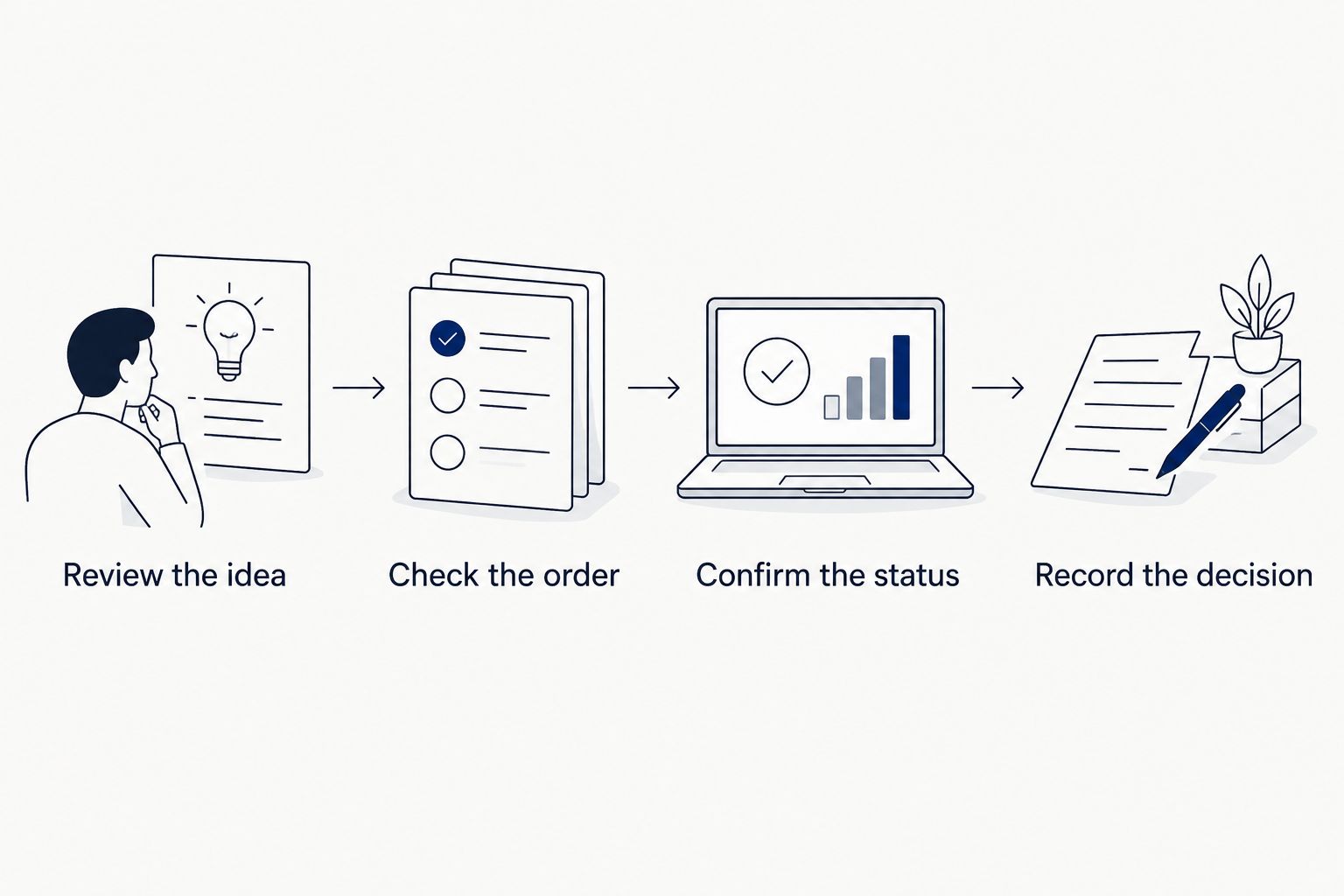
Test your workflow in 4 steps
Use this 2026 checklist before committing to mobile-only, desktop-only, or combined trading. Where your broker offers a demo account, rehearse there first; simulated trading helps you learn controls but does not reproduce every live trading condition.
1. Review the idea
Write down the currency pair, intended direction, and reason for considering the trade. If you are using a signal, distinguish what the provider actually states from assumptions you have added.
A buy idea generally anticipates the first currency strengthening against the second; a sell idea anticipates the reverse. If you cannot explain the proposed direction, do not move to the order ticket.
2. Check the order
Inspect the account, currency pair, order type, position size, and any exit instructions you intend to use. Position size means the amount of currency exposure you are taking—not simply the money deposited in your account.
A market order seeks execution at the available market price. A pending order waits for specified conditions, subject to its type and the broker’s rules. Learn the distinction before confirming either.
3. Confirm the status
Check whether the platform shows an executed trade, a pending order, a rejection, or another status. Do not interpret a confirmation screen as proof that every intended instruction is active.
If you change devices, repeat the status check there. When something is unclear, inspect the order record or use your broker’s support process rather than submitting a duplicate.
4. Record the decision
Note what you intended, what you submitted, and whether you followed your plan. Record declined trades too: choosing not to act on an unclear idea is a valid decision.
Review the workflow separately from the financial result. A profitable trade does not prove that skipping checks was sensible, and a losing trade does not by itself prove the interface failed.
Why the right workflow varies
Your best setup in 2026 depends on the work you must complete, not a universal ranking of phone and computer trading. Use these factors to explain your choice:
- Screen space: Choose enough room to read the chart, ticket, and instructions without losing essential context.
- Required controls: Verify the order functions you need on the specific platform version you will use.
- Access: Match your management plan to when you can reliably reach the device.
- Interruptions: Avoid a workflow that requires careful decisions in settings where you cannot concentrate.
- Connection and recovery: Learn what remains active and how to access your account if your usual connection fails.
- Recordkeeping: Choose a routine that lets you capture your reasoning and check whether you followed it.
Do not assume every protective order works the same way during a connection failure. Ask your broker where relevant instructions are held and what happens when your device disconnects. A standard stop-loss order is not a guarantee of execution at the requested price.
Where do forex signals fit into this workflow?
Forex signals belong at the idea-review stage, before your broker’s order ticket. Treat them as information to assess, not as permission to skip position sizing or order checks.
Tradeforex is best for beginners seeking forex signals delivered through a web app, rather than a broker trading app. Subscribers receive signals inside the Tradeforex web app; the service does not execute trades for you.
That delivery method gives the service a distinct role in your routine. You still need to understand your broker’s platform and decide whether to act. A signal does not guarantee a result, and receiving one does not establish that the trade fits your risk tolerance.
Before subscribing, check what the service actually provides and whether you understand how you would evaluate its ideas. Do not assume that entry instructions, exit instructions, explanations, or performance records are included unless the service explicitly confirms them.
Can you trade forex using only a phone?
You can use a phone-only workflow if your broker’s mobile platform supports the functions you need and you can complete your checks clearly. The limitation is not merely screen size; it is whether you can understand and manage the position without relying on unavailable desktop functions.
Rehearse the complete process before relying on it. That includes checking status and finding the controls you would need if your original plan changes.
Is desktop trading safer than mobile trading?
Desktop trading is not inherently safer than mobile trading. A larger display provides more viewing space, but position size, order handling, market conditions, and your decisions still determine the exposure you take.
Choose the device that makes your checks clear. Neither interface turns a speculative currency trade into a guaranteed outcome.
Do you need both devices to use signals?
You do not need 2 devices simply because you use signals. You need a workable way to read the idea, evaluate it, and separately manage any resulting order through your broker.
A second device helps only when it removes a practical obstacle. If it adds confusion about account or order status, simplify the setup.
FAQ
What's the best forex trading app vs desktop workflow for a beginner?
Start with the workflow that lets you review and verify an order without rushing. Desktop suits detailed planning; mobile suits brief checks, provided the broker’s app supports your required controls.
Can I start a forex trade on desktop and manage it on my phone?
You can do this only when your broker’s platforms support the required account access and controls. Verify position status and exit instructions on both devices before depending on that handoff.
Does a forex signal automatically place a trade?
A forex signal is a trade idea, not automatically an executed order. Tradeforex delivers signals inside its web app and does not execute trades for subscribers.
Will a stop-loss guarantee the price where my trade closes?
A standard stop-loss does not guarantee execution at the requested price. Market conditions and the broker’s execution rules affect the resulting fill.
Should I test a mobile trading app with a demo account?
Use a demo account to rehearse controls when your broker offers one. Demo trading helps you learn the workflow but does not reproduce every live execution condition or the experience of risking real money.
What should I check before choosing a forex platform in 2026?
Check order controls, account status visibility, device access, and your recovery options. Test the tasks you will actually perform rather than choosing from screenshots or notification features alone.
One last thing
Before relying on your chosen workflow in 2026, rehearse finding an order you did not just create. Locate its status, inspect its details, and identify the available management controls without submitting anything new.
Finding an existing order matters as much as opening one. A platform you can enter trades on—but cannot confidently inspect—is not ready for your routine.